Apply with the application panel
The side panel that walks you through one application: account, form, documents, and marking it applied.
When you apply through a web form, the extension can keep a checklist open beside the application page. It shows what the call needs, fills what it can, and marks the call as applied when you tell it you submitted.
This needs Arttera extension version 0.1.13 or newer, installed and connected. To check your version, open chrome://extensions and read the number under Arttera. Chrome updates extensions on its own.
Open the panel
- On a call page, click Apply. The application page opens in a new tab.
- A small card appears at the bottom right of that page: Your Arttera checklist is ready. Click Got it to close it.
- Click the Arttera icon in Chrome's toolbar. A green OPEN badge on the icon shows you where. The panel opens beside the page.
What the panel shows
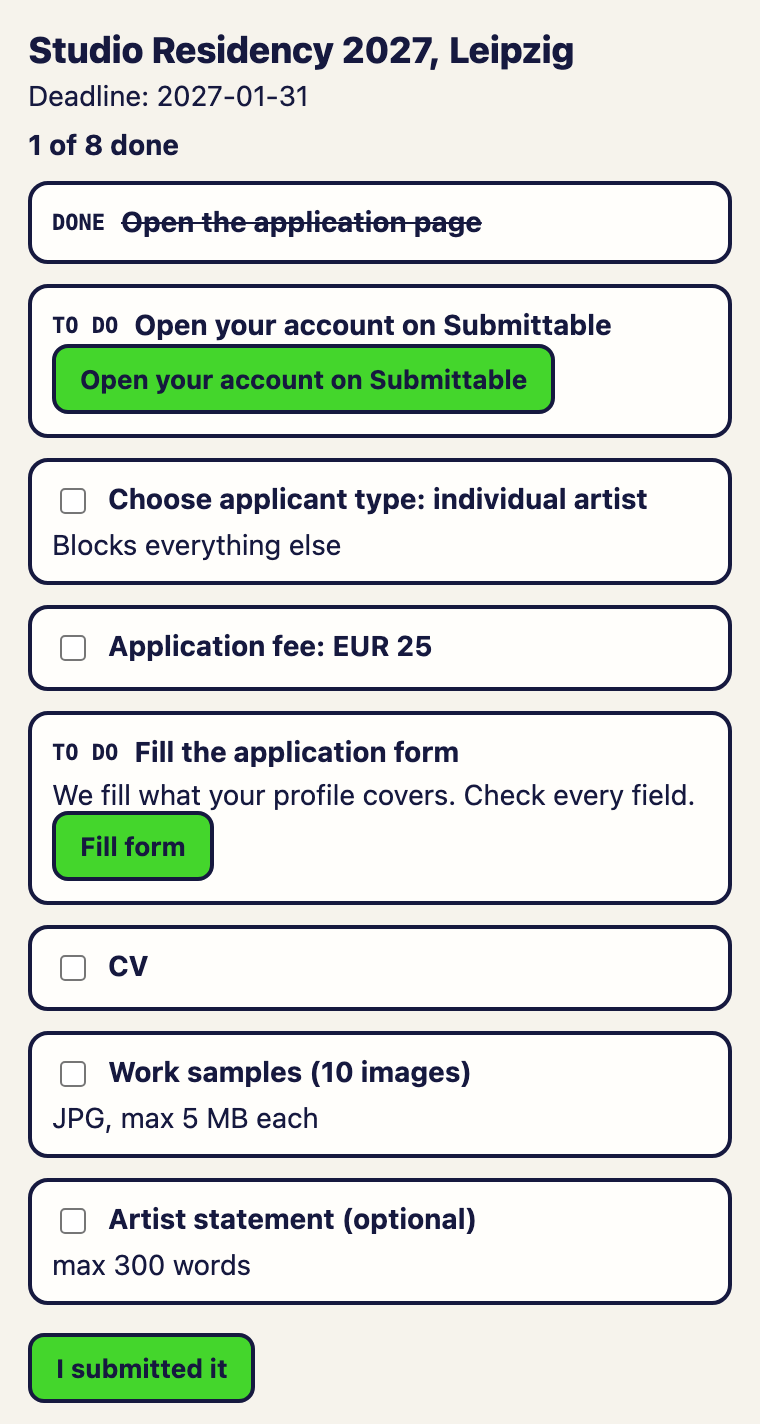
At the top you see the call, its deadline and how many steps are done. Below are the steps for that call:
- Open the application page. Done as soon as the tab opens.
- Open your account on the platform's name, only when the call needs an account first.
- Any extra steps the platform asks for, such as choosing an applicant type or verifying your email, and the application fee.
- Fill the application form.
- One step for each document or text the call asks for, such as a CV, work samples or a statement. Optional ones say so.
What ticks itself
- Open the application page: always done.
- Open your account: ticks when the extension has filled a sign-up form for you.
- Fill the application form: ticks when the extension has filled at least one field.
Everything else is yours to tick as you finish it.
The buttons
- Open your account on the platform's name: use it on the platform's sign-up page. The extension fills your name, your email and a strong new password. You accept the terms, solve any CAPTCHA and verify your email yourself. Your browser offers to save the password, so say yes. If the page has no sign-up form, the panel says so.
- Fill form: the same fill as in the popup. Fields marked Arttera AI or Arttera need your eye, see Fill a form with the extension.
- I submitted it: marks the call as applied in your Registry. Submit on the platform first. The extension never submits for you.
If you leave the platform
The buttons switch off and a pink note tells you the tab left the platform. Go back to the application page and they work again. The panel remembers your ticks for about four hours after you start.
If it does not work
- Open an application from Arttera to use this panel. You opened the panel on a tab we did not start. Click Apply on the call page.
- Connect the Arttera extension first. The extension is not linked to your account. See Install and connect.
- We could not load this application's checklist. Try again in a moment.
- Calls that take applications by email use Prepare application instead. See Apply by email.
Something here is wrong or missing? Use the Feedback button in your dashboard and tell us. We fix the article.