Install and connect the Chrome extension
Add it from the Chrome Web Store, link it to your account, and check that it works.
The extension fills application forms on other websites, such as Google Forms, residency sites and call platforms, using your sheet. It works in Chrome on a computer.
Before you start
Fill in your sheet. The extension can only fill what you have written there.
Install it
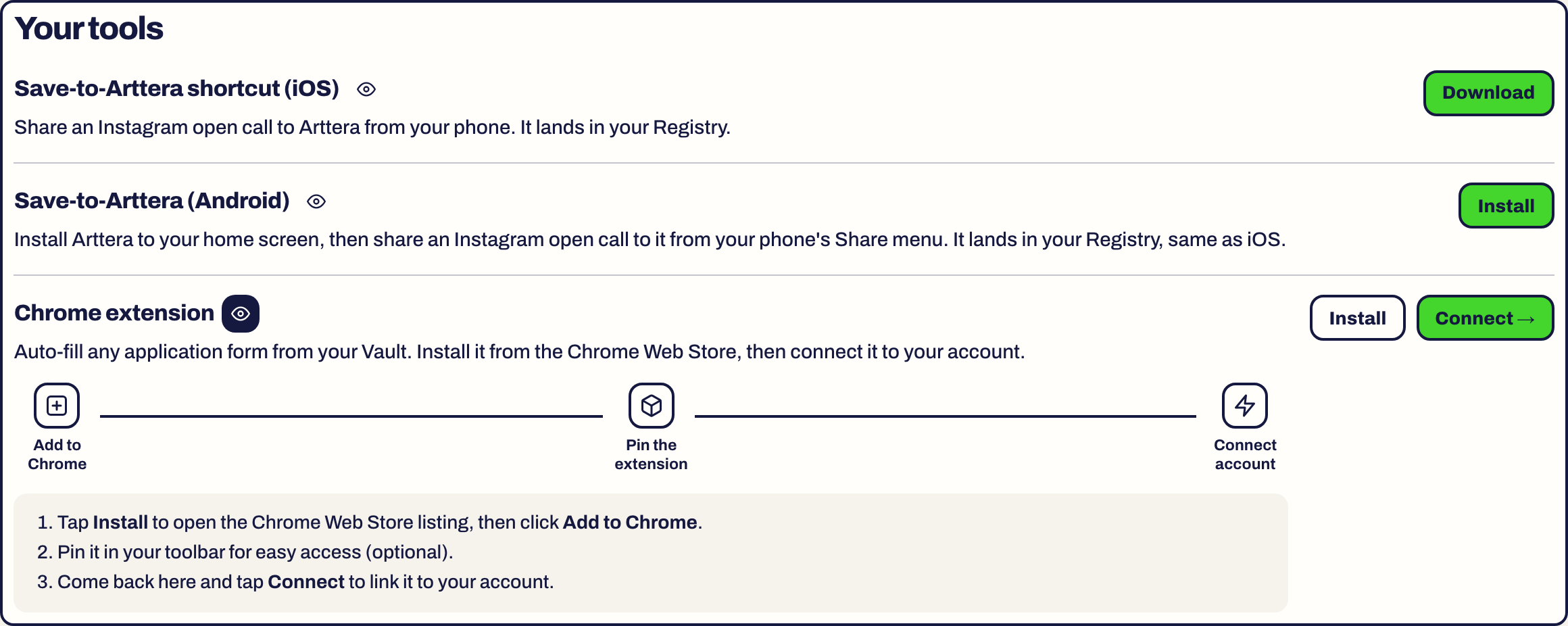
- Open Settings in the dashboard. The Your tools card has a Chrome extension row.
- Choose Install. The Chrome Web Store listing opens in a new tab.
- Click Add to Chrome, then confirm.
- Optional: click the puzzle icon in Chrome's toolbar and pin Arttera, so it is one click away on every application page.
Connect it to your account
Installing is not enough. The extension also has to know whose sheet to use.
- Back in Settings, choose Connect. A new tab opens and links the extension to your account.
- Wait for the line Connected. You can close this tab and use the extension. The tab closes itself once the extension confirms.
- Return to Settings. The row now shows Connected and a Disconnect button.
Check that it works
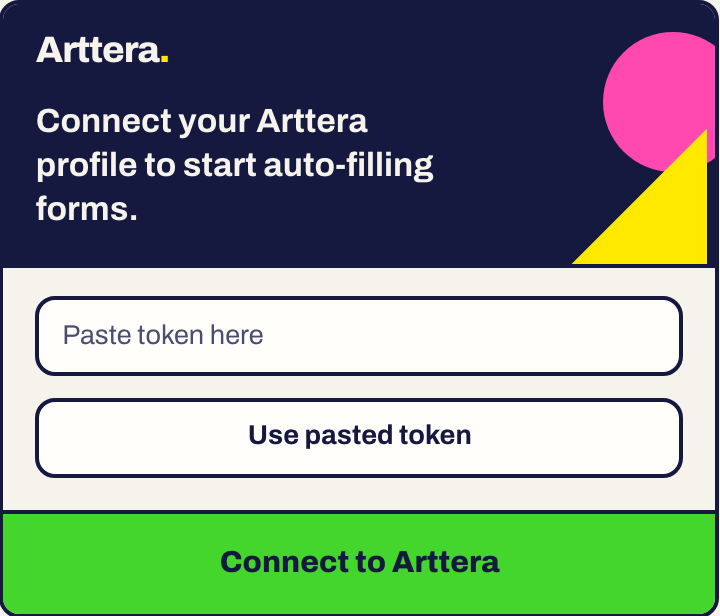
Open any application page, for example a Google Form. Click the Arttera icon. If you are connected, the popup shows a fill button instead of the connect screen. The next article walks through filling a form: Fill a form with the extension.
Disconnect
In Settings, choose Disconnect on the Chrome extension row and confirm. You can reconnect from the same page whenever you like.
What it reads
The extension reads the page you have open when you use it, to find the form fields. It writes into a form only when you ask. It does not watch your browsing in the background.
If something goes wrong
- No Connect button, only Connected: you are already linked. Open the popup on an application page.
- Popup keeps asking to connect: disconnect in Settings, then connect again.
- Still stuck: use the Feedback button in your dashboard and include the page address.
Something here is wrong or missing? Use the Feedback button in your dashboard and tell us. We fix the article.