Fill a form with the extension
What the popup shows, what the coloured markers mean, and what you check before you submit.
This assumes the extension is installed and connected.
Fill a form
- Open the application page.
- Click the Arttera icon in Chrome. While an application is open in a tab, the icon opens the panel for that tab; use Fill form there.
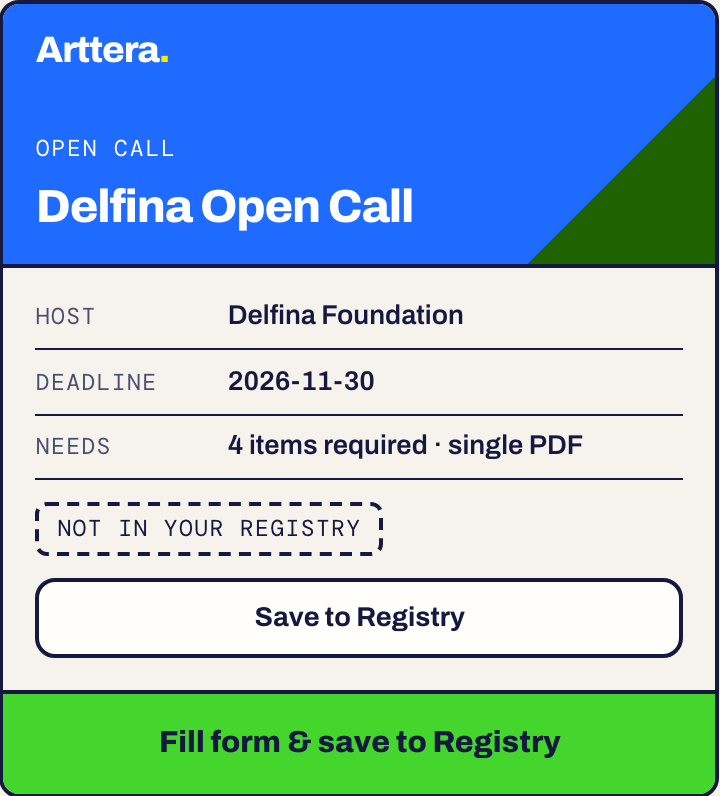
- Read the top of the popup. It shows the call it recognised, whether it is a residency or an open call, and In your Registry or Not in your Registry.
- Choose Fill form & save to Registry. If the call is already in your Registry the button reads Fill this form. Save to Registry alone saves the call without filling.
Read the result
The popup reports what happened, for example: Filled 7 field(s), skipped 1, 2 unmapped, 1 choice left for you. The call is added to your Registry, and View in Registry takes you there.
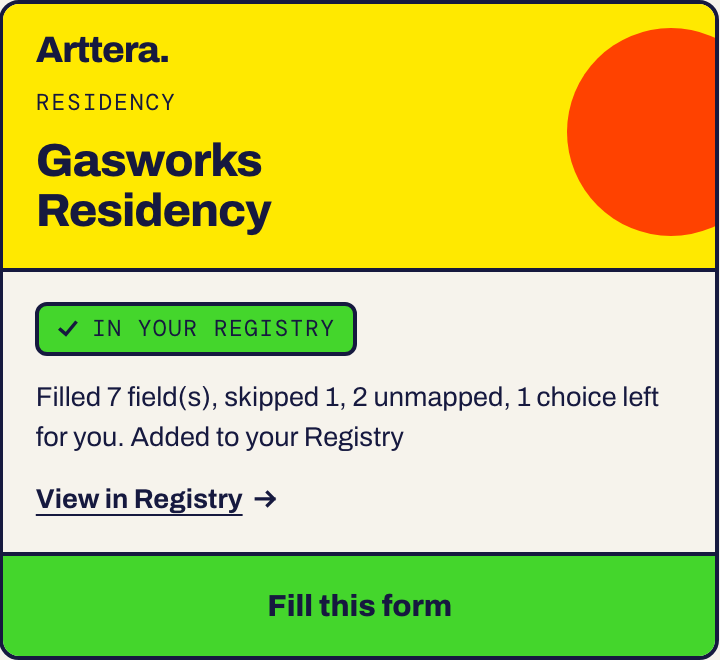
- Filled: fields it completed from your sheet.
- Skipped: fields it left alone, for instance ones that already had text.
- Unmapped: fields it recognised but cannot answer from your sheet.
- Choice left for you: a radio button or menu where the pick is yours.
Read the markers on the page
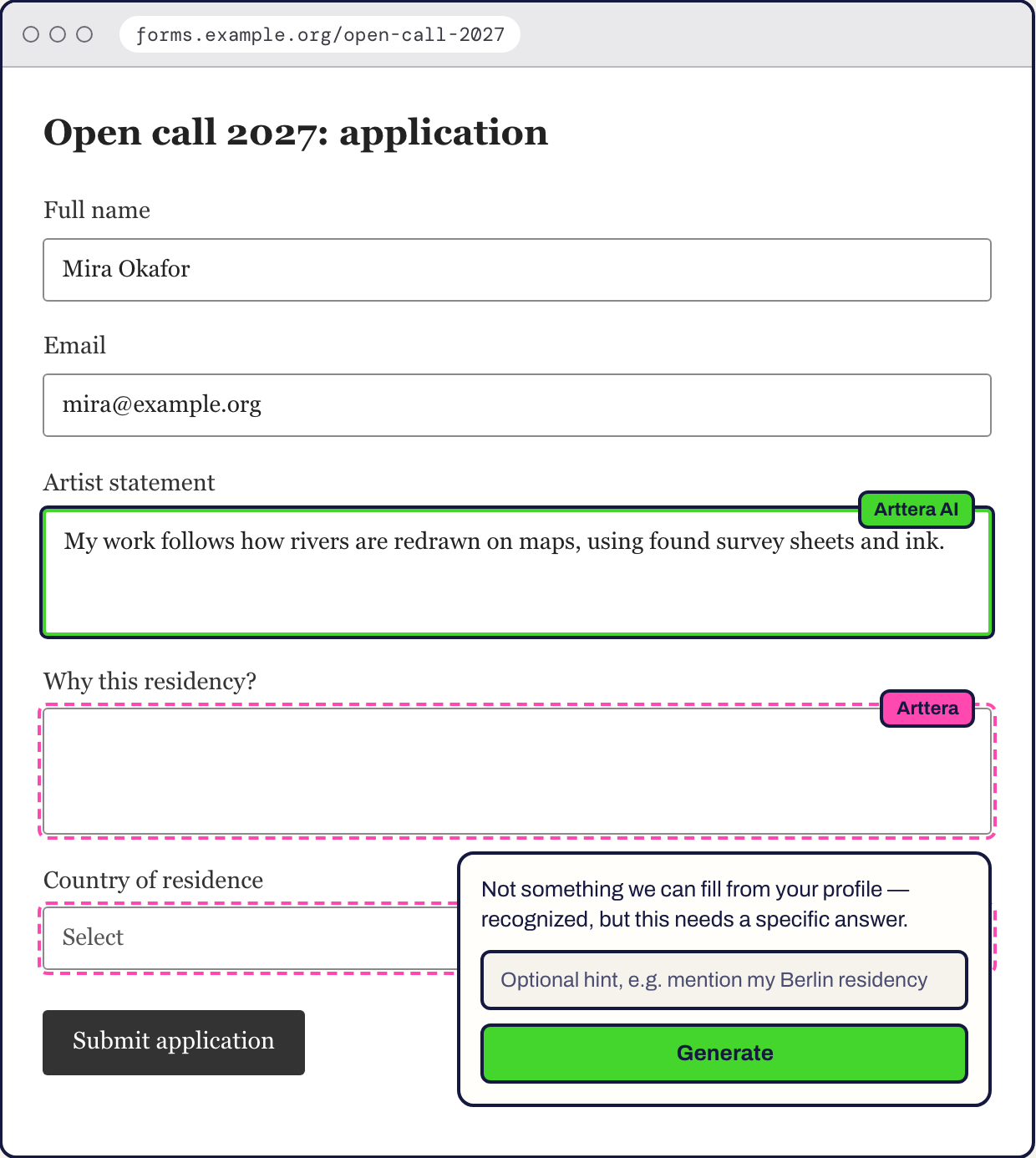
After a fill, Arttera marks fields that need a look. Fields without a marker came straight from your sheet.
- Green outline, tag Arttera AI: an answer written by AI from your sheet and the call. Read it and edit it.
- Pink dashed outline, tag Arttera: this one needs you. Click the tag to give a hint and generate an answer, or write it yourself.
When a call needs an account first
Some calls apply through a platform where you need an account before you can see the form. The call page then shows Open your account on and the platform's name. The button opens the platform's sign-up page. With Arttera extension version 0.1.12 or newer, the extension fills your name, your email and a strong new password. You still accept the terms, solve any CAPTCHA and verify your email yourself. Your browser offers to save the password, so say yes and you will not have to remember it.
The application side panel
With extension version 0.1.13 or newer, Apply on a call opens the application page with a checklist panel beside it. It opens your account, fills the form and marks the call as applied. See Apply with the application panel.
Before you submit
If a page bans AI-written applications, the popup warns you first. See Pages that ban AI.
Limits
AI answers are counted. Settings shows what is left. See Usage and limits.
When the free plan's monthly AI answers are used up, the Generate popup says so and shows a Get Plus link to the pricing page. If it says Arttera isn't connected, open the extension and reconnect.
Something here is wrong or missing? Use the Feedback button in your dashboard and tell us. We fix the article.